Tiddle
User guide for the Tiddle Android app.
Overview
Tiddle is a focused Android app for tracking fluid intake and output. It lets you log what you drink, record urine and bowel output, keep a dated history with notes, and export your data to share with a healthcare provider.
Everything is stored locally on your device. Tiddle requires no account, no internet connection, and no subscription. Your data never leaves your phone unless you choose to export it.
Home screen
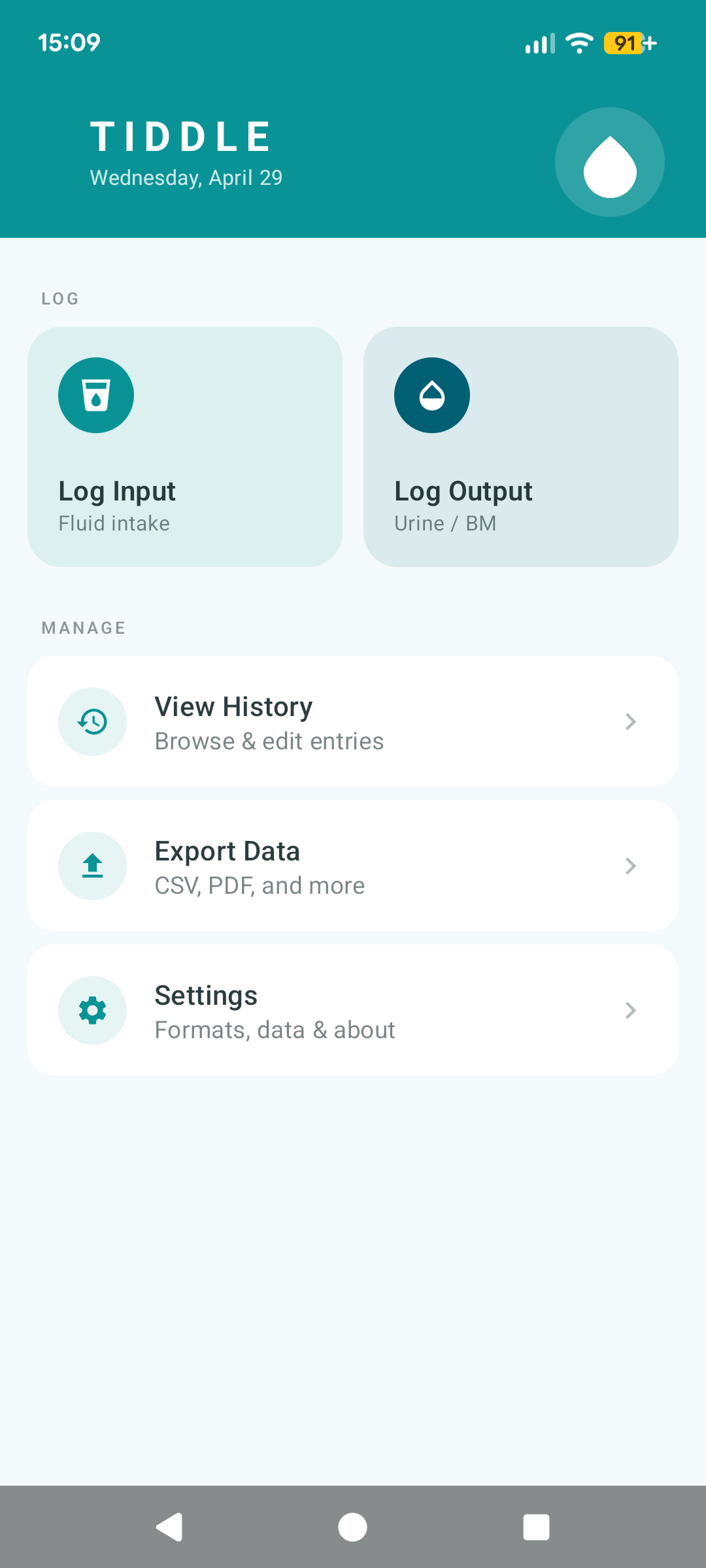
When you open Tiddle, the home screen shows today's date and five options:
- Log Input: record a new fluid intake entry
- Log Output: record a urine or bowel output entry
- View History: browse and manage your past entries
- Export Data: download or share your data as a file
- Settings: configure display preferences and manage your data
Tap any option to navigate to that screen. Use the back arrow in the header to return to the home screen from any screen.
Logging input
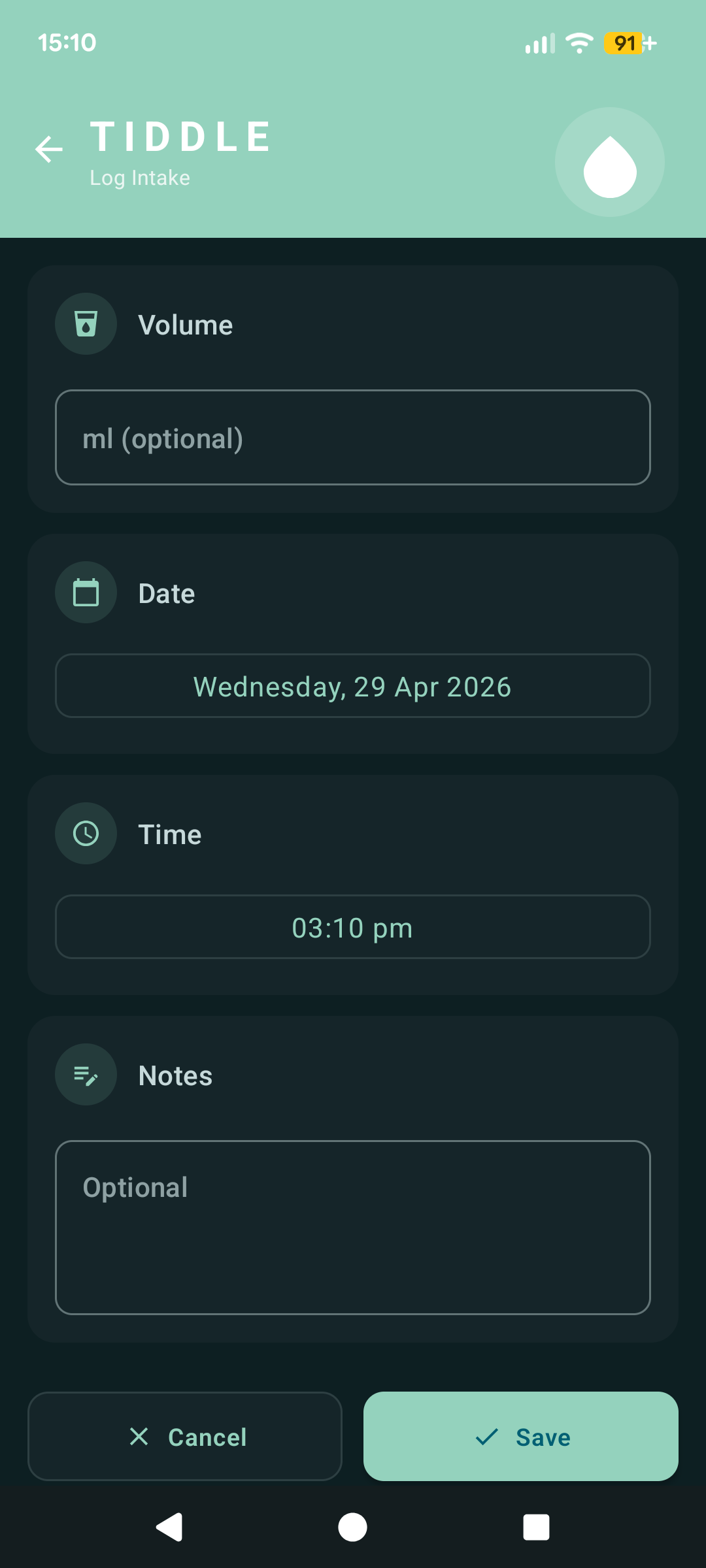
Tap Log Input on the home screen to open the intake form.
Date and time
The date and time fields default to the current date and time. Tap either button to change them using the system date picker or time picker. This is useful if you want to log a drink that was taken earlier and not immediately recorded.
Volume
Enter the volume of fluid consumed. The unit (millilitres or fluid ounces) is shown next to the field and reflects your current unit setting. You can change the unit in Settings.
Notes
The notes field is optional. Use it to add context, for example:
- "Morning water with medication"
- "Protein shake after exercise"
- "Estimated: didn't finish the glass"
Saving
Tap Save to record the entry and return to the home screen. Tap Cancel to discard the form and go back without saving anything.
Logging output
Tap Log Output on the home screen to open the output form.
Output type
Select the type of output:
Date and time
As with input, the date and time default to now but can be changed using the date and time pickers.
Volume
Volume is optional for output entries. If you have a measuring device (such as a jug or commode pan with measurements), enter the volume in your chosen unit. Leave it blank if you are not measuring.
Notes
The notes field is optional. Use it to add context, for example:
- "Unusually dark colour"
- "Catheter bag emptied"
- "Loose stool"
Saving
Tap Save to record the entry. Tap Cancel to go back without saving.
Viewing history
Tap View History on the home screen to see all your past entries. Entries are grouped by date, with the most recent at the top.
Entry rows
Each row shows:
- A colour-coded badge indicating the entry type (Input, Urine, or Bowel)
- The volume (if recorded)
- The time of the entry
- A chevron to indicate the row is expandable
Tap any row to expand it.
Expanded view
When a row is expanded, you can see:
- The notes attached to the entry (if any were added)
- An Edit button to modify the entry
- A Delete button to remove it
Editing an entry
Tap Edit to open the edit dialog. From here you can change the date, time, type, volume, and notes. Tap Save to apply your changes, or Cancel to close without saving.
Deleting an entry
Tap Delete and confirm the prompt to permanently remove an entry. This cannot be undone.
Exporting data
Tap Export Data on the home screen to generate a file containing your records.
Export options
- Format: CSV, PDF, Excel (.xlsx), or JSON
- Data scope: all entries, input only, or output only
- Date range: optionally set a from and to date to export only entries within a specific period; leave both blank to export everything
Saving and sharing
- Tap Save to save the file to your Downloads folder
- Tap the Share icon to send the file via any app on your device (email, messaging, cloud storage, etc.)
Settings
Tap Settings from the home screen to access the following options.
Appearance
Theme controls the colour scheme of the app. Choose from:
- System (default): follows your device's light or dark mode setting
- Light: always uses the light theme
- Dark: always uses the dark theme
Display
Date format changes how dates appear throughout the app. Options:
- Monday, 1 Jan 2024 (default)
- 1 Jan 2024
- 01/01/2024
- 01/01/2024 (US month-first)
- 2024-01-01 (ISO 8601)
Time format switches between 12-hour (e.g. 3:30 PM) and 24-hour (e.g. 15:30) display.
Units
Volume unit sets whether volumes are entered and displayed in millilitres (ml) or fluid ounces (fl oz). This applies to both input and output entries. Changing the unit does not convert existing data; historical entries will still display the value as it was originally entered.
Data
Delete All Data permanently removes all input and output records. A confirmation prompt is shown before anything is deleted. This cannot be undone.
About
The App Info card shows the app's version number and build number.
Privacy & Legal opens a screen with the app's privacy policy and medical disclaimer.
Privacy
Tiddle is built with privacy as a core principle. Here is exactly how your data is handled:
- All entries are stored locally on your device using Android's standard app storage
- Tiddle does not require an internet connection and does not request network permissions
- No data is ever sent to any server, including Sylvester Digital's servers
- There are no analytics, crash reporting, or advertising SDKs in the app
- No account or sign-up is required
- Exported files are created entirely on your device; you decide if, when, and how to share them
If you uninstall the app, all locally stored data is removed by the Android operating system as part of the standard uninstall process. There is no cloud backup to restore from, so export your data first if you want to keep it.
FAQ
Can I use Tiddle on iOS?
Tiddle is currently Android only. We may explore other platforms in the future.
Can I log an entry for a past time?
Yes. On the log screen, tap the date button to pick any date in the past, and the time button to set the time.
Do I have to enter a volume for output?
No. Volume is optional for output entries. You can log urine or bowel output without a measurement if you do not have a way to measure it.
What unit should I use?
Most clinical guidance in the UK uses millilitres (ml). If you or your care team work in fluid ounces, switch the unit in Settings. Either works fine, but be consistent so your records are comparable over time.
How do I move my data to a new phone?
Export your data as CSV from your old device, transfer the file to your new device (via email, cloud storage, or cable). Support for CSV import will be available in a future version of the app.
How do I share my records with my doctor or nurse?
Use the Export screen to generate a file, then tap the share icon to send it however is most convenient: email, WhatsApp, or another app. A PDF or Excel file is usually easiest for clinical staff to read.
Something isn't working. How do I get help?
Use the contact form and select "Tiddle: feedback or bug report". Include your Android version and a description of the issue and we will get back to you.