Luma
User guide for the Luma Android app.
Overview
Luma is a focused Android app for tracking your menstrual cycle. It lets you log period days with a flow level and optional notes, predicts your next period and fertile window based on your history, and shows both on a clean cycle wheel and monthly calendar.
Everything is stored locally on your device. Luma requires no account, no internet connection, and no subscription. Your data never leaves your phone.
Home screen
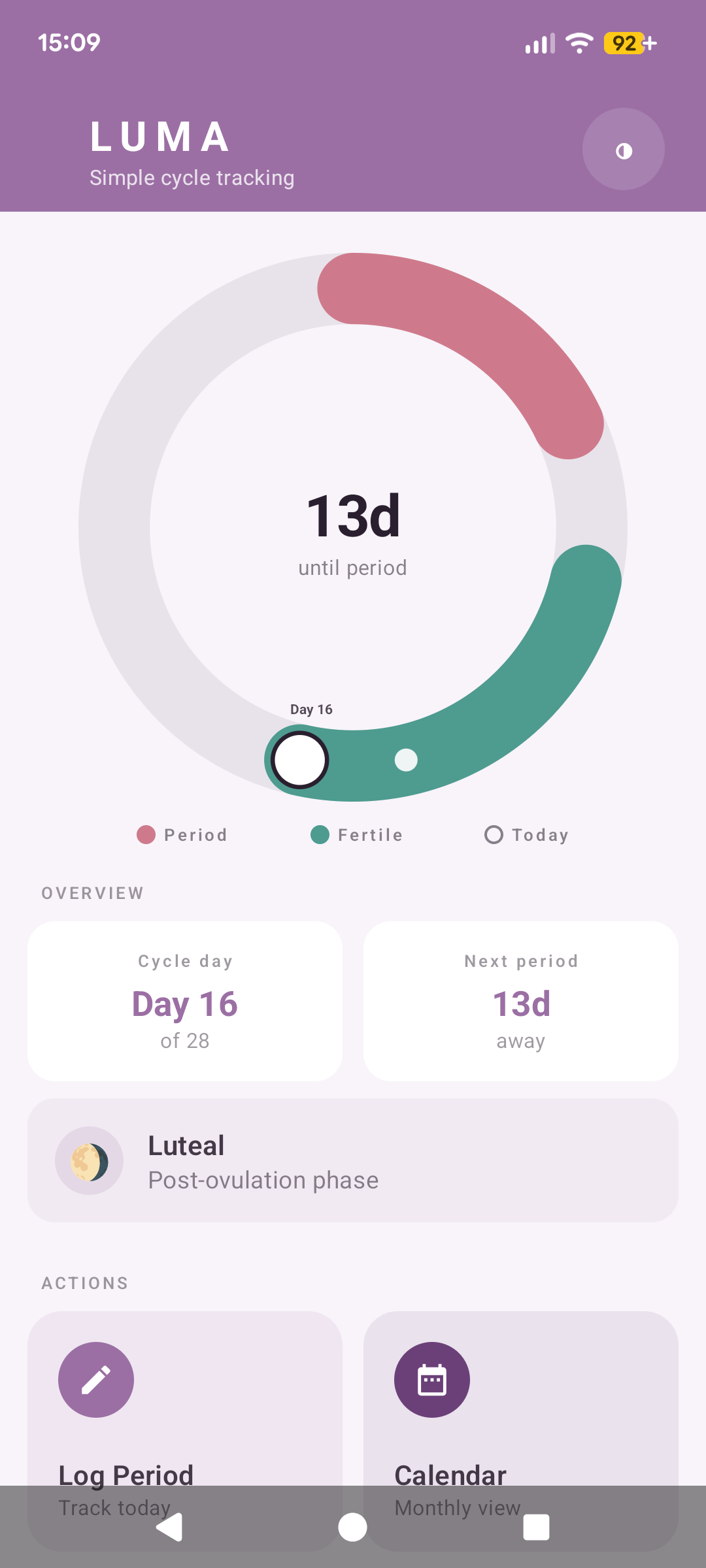
When you open Luma, the home screen shows three areas:
- Cycle wheel: a visual ring showing your period arc (pink/red), fertile window arc (teal), and your current day position
- Overview cards: your current cycle day and how many days until your next period
- Phase indicator: the name and description of your current cycle phase (menstrual, follicular, ovulatory, or luteal)
Below these, two action tiles give quick access to Log Period and Calendar.
The theme toggle button in the top-right corner switches between light and dark mode.
Reading the cycle wheel
The wheel represents your full cycle length. The coloured arcs show:
- Pink/red arc: your period days (logged or predicted)
- Teal arc: your estimated fertile window
- White circle marker: today's position in the cycle
The number in the centre shows how many days remain until your next period. Predictions are calculated from your average cycle length based on your logged history.
Cycle phases
Luma identifies four phases and displays the current one on the home screen:
- Menstrual: the period itself, typically days 1 to 5
- Follicular: from the end of your period to ovulation
- Ovulatory: the days around ovulation, when the fertile window peaks
- Luteal: from ovulation to the start of your next period
Logging a period
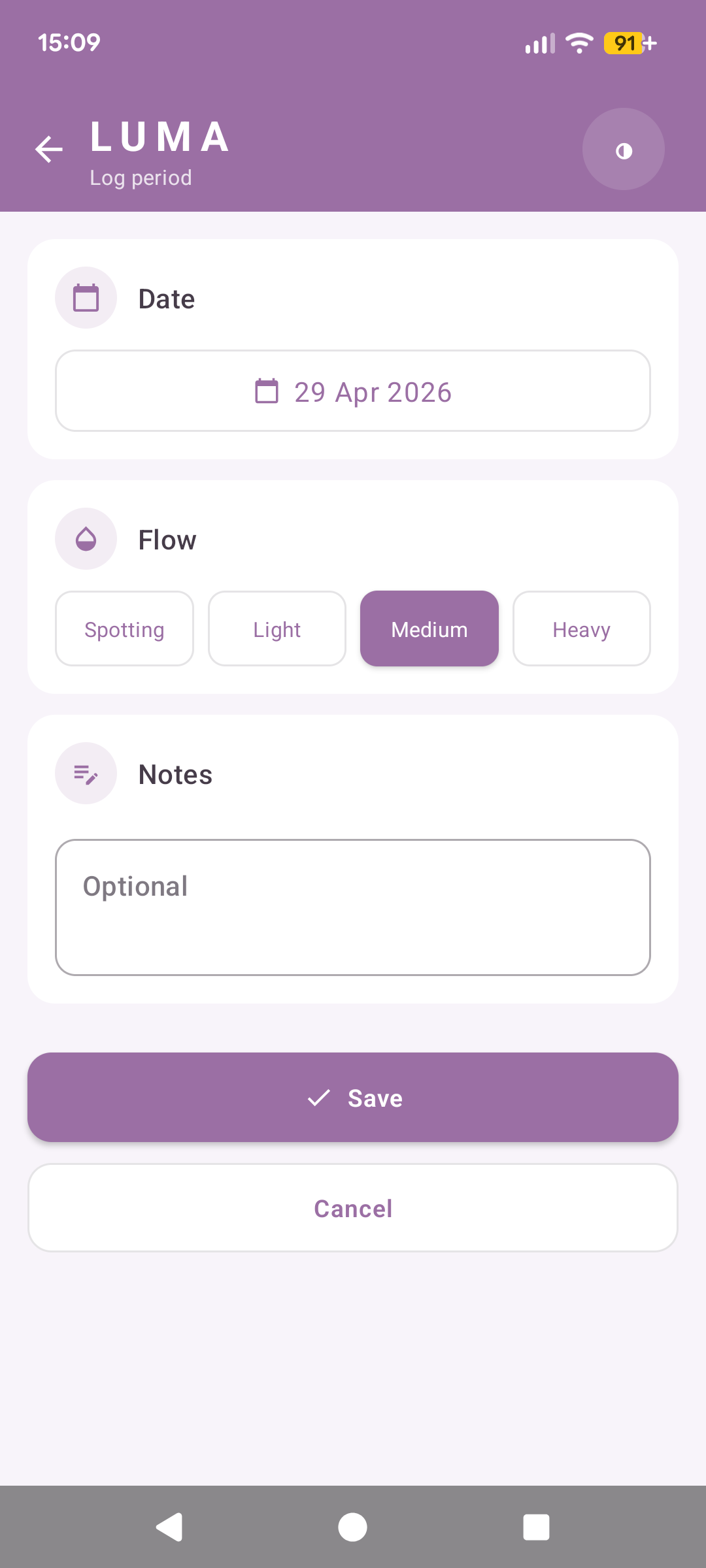
Tap Log Period on the home screen to open the log form.
Date
The date defaults to today. Tap the date button to change it using the system date picker. Use this to back-log period days you forgot to record at the time.
Flow
Select the flow level for this day:
Notes
The notes field is optional. Use it to capture anything relevant to this day, such as pain, cramping, or other symptoms you want to remember.
Saving
Tap Save to record the entry and return to the home screen. Tap Cancel to discard the form and go back without saving.
Calendar view
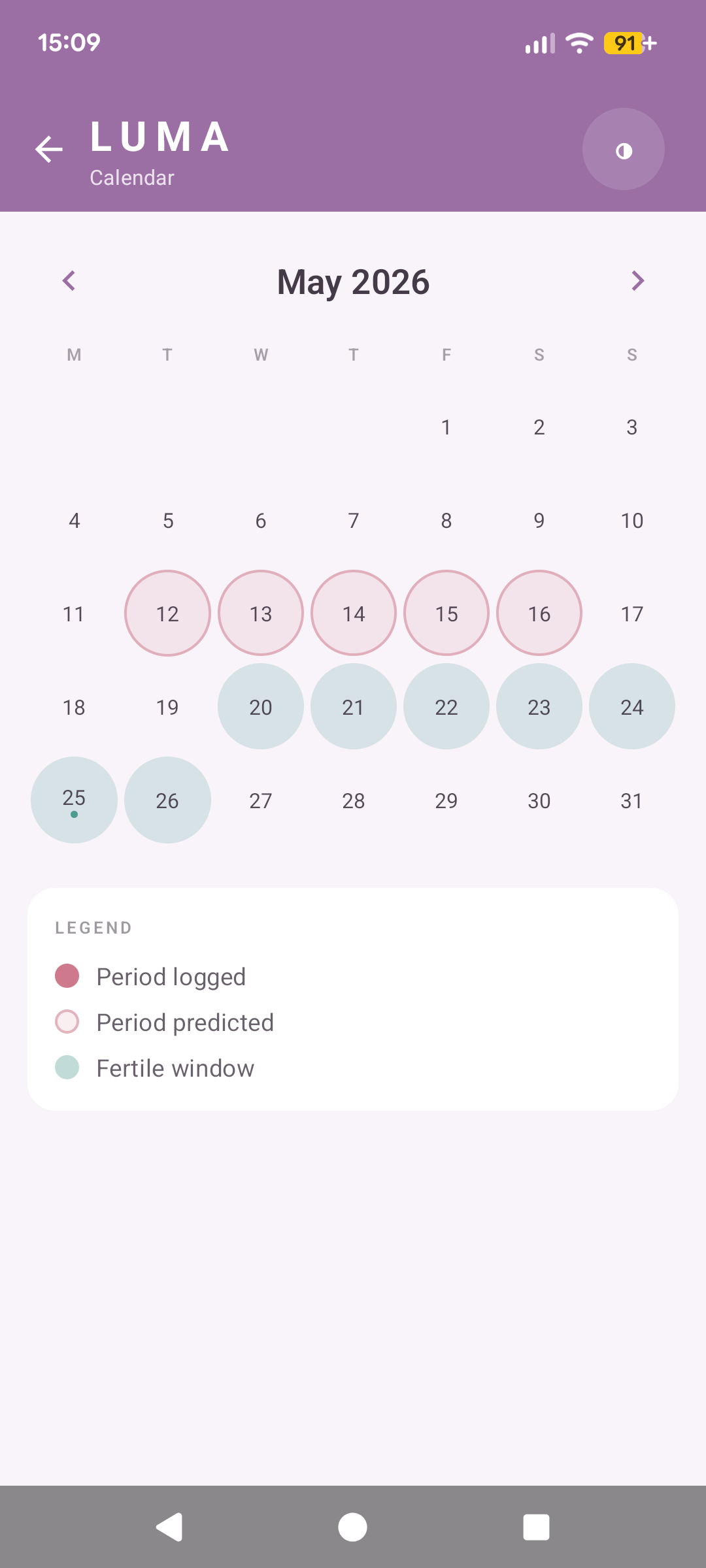
Tap Calendar on the home screen to see a monthly overview of your cycle. Use the left and right arrows to navigate between months.
Calendar legend
- Filled red circle: a period day you have logged
- Outline pink circle: a predicted period day based on your cycle history
- Teal circle: a day within your estimated fertile window
- Small dot: today's date
The legend is displayed below the calendar grid for quick reference.
Viewing history
Your complete log of period entries is accessible through the history section. Entries are grouped by cycle, with the most recent at the top.
Entry rows
Each row shows:
- The date of the entry
- The flow level recorded
- A chevron to indicate the row can be expanded
Tap any row to expand it.
Expanded view
When a row is expanded, you can see:
- The notes attached to the entry (if any were added)
- An Edit button to modify the entry
- A Delete button to remove it
Editing an entry
Tap Edit to open the edit form. You can change the date, flow level, and notes. Tap Save to apply your changes, or Cancel to close without saving.
Deleting an entry
Tap Delete and confirm the prompt to permanently remove an entry. This cannot be undone.
Settings
Access Settings from the home screen menu to configure the following options.
Appearance
Theme controls the colour scheme. Luma can also be toggled directly from the button in the top-right corner of the home screen. Options:
- System (default): follows your device's light or dark mode setting
- Light: always uses the light theme
- Dark: always uses the dark theme
Cycle settings
Average cycle length is calculated automatically from your logged history. If you are new to Luma and have not yet logged enough data for a reliable average, you can set a manual cycle length here. The default is 28 days.
Average period length works the same way, defaulting to 5 days until your history provides a reliable average.
Data
Delete All Data permanently removes all logged period entries and resets your cycle history. A confirmation prompt is shown before anything is deleted. This cannot be undone.
About
The App Info card shows the app's version number and build number.
Privacy & Legal opens a screen with the app's privacy policy and medical disclaimer.
Privacy
Luma is built with privacy as a core principle. Here is exactly how your data is handled:
- All entries are stored locally on your device using Android's standard app storage
- Luma does not require an internet connection and does not request network permissions
- No data is ever sent to any server, including Sylvester Digital's servers
- There are no analytics, crash reporting, or advertising SDKs in the app
- No account or sign-up is required
If you uninstall the app, all locally stored data is removed by the Android operating system as part of the standard uninstall process. There is no cloud backup to restore from, so be aware of this before uninstalling.
FAQ
Can I use Luma on iOS?
Luma is currently Android only. We may explore other platforms in the future.
How accurate are the predictions?
Predictions are calculated from your average cycle and period length based on your logged history. The more cycles you have logged, the more accurate the predictions become. Luma cannot account for irregular cycles, stress, illness, or other factors that affect timing. Do not rely on Luma for contraception.
Can I log a period day for a date in the past?
Yes. On the log period screen, tap the date button to pick any past date.
What if my cycle is irregular?
Luma uses your average cycle length to make predictions. If your cycle varies significantly from month to month, predictions will be less reliable. You can still use Luma to log and review your history even if the predictions are approximate.
How do I set a manual cycle length?
Go to Settings and update the cycle length field. This is useful when you are just getting started and do not yet have enough logged history for an automatic average.
Something isn't working. How do I get help?
Use the contact form and select "Luma: feedback or bug report". Include your Android version and a description of the issue and we will get back to you.